
Steps to enable MFA for existing users
Before activating your user account, install an authentication app on your mobile phone to generate one-time verification codes (OTP). We recommend Microsoft Authenticator or Google Authenticator, which are available for free on Google Play or the App Store. If you already use such an app, you can skip this step. If you are unable to install the authentication app on your mobile phone, alternative desktop applications are available for desktop computers or laptops, such as Proton Authenticator or AuthWin.
More information about authenticator apps, including download links, is available on a separate webpage.
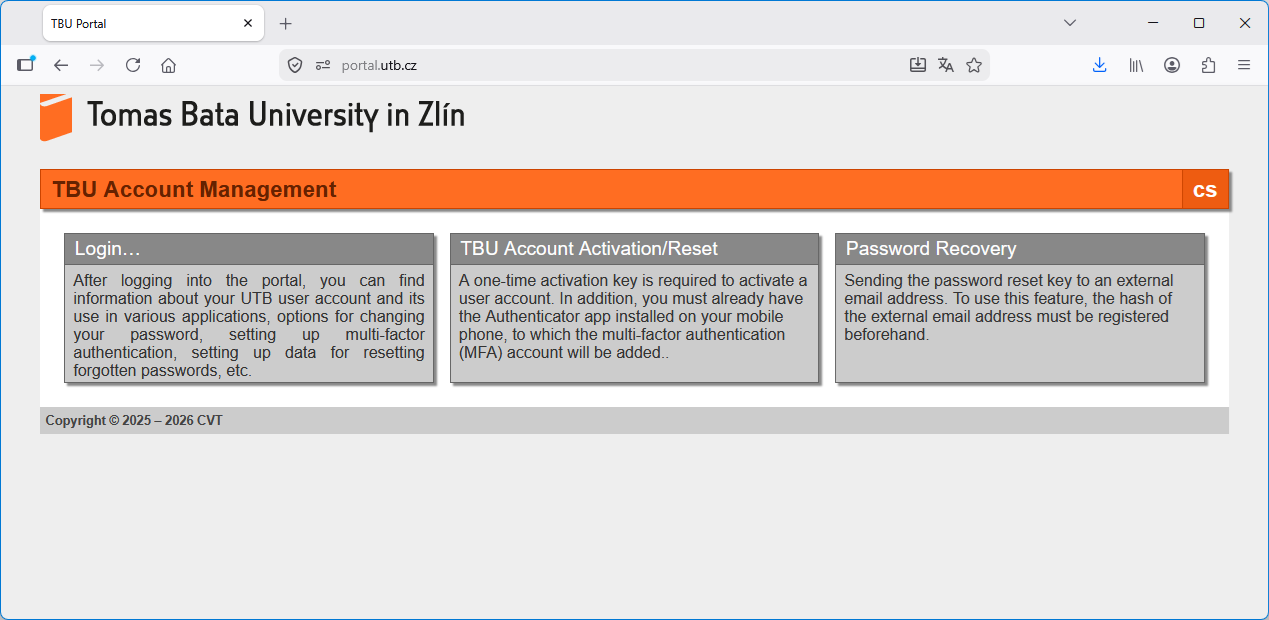
On the new web portal at portal.utb.cz (launching on May 20, 2026), click the Login tile and log in using your existing username and password.
After logging in, you will see information about your user account and its usage, along with a list of available features. Make a note of your utbID. You will need this later as the password to open the file containing the activation key, which you will receive via e-mail. Then log out.
You will receive an email at your university address asking you to activate your account. This e-mail will be sent from portal-noreply@utb.cz. The e-mail will contain a PDF file in the attachment, which will include a one-time activation key for your user account, its expiration date, and usage instructions. The PDF file will be password-protected. Use your utbID, which you obtained in the previous step, as the password. Be sure to use uppercase letters.
On the portal.utb.cz website, click the TBU Account Activation/Reset tile.
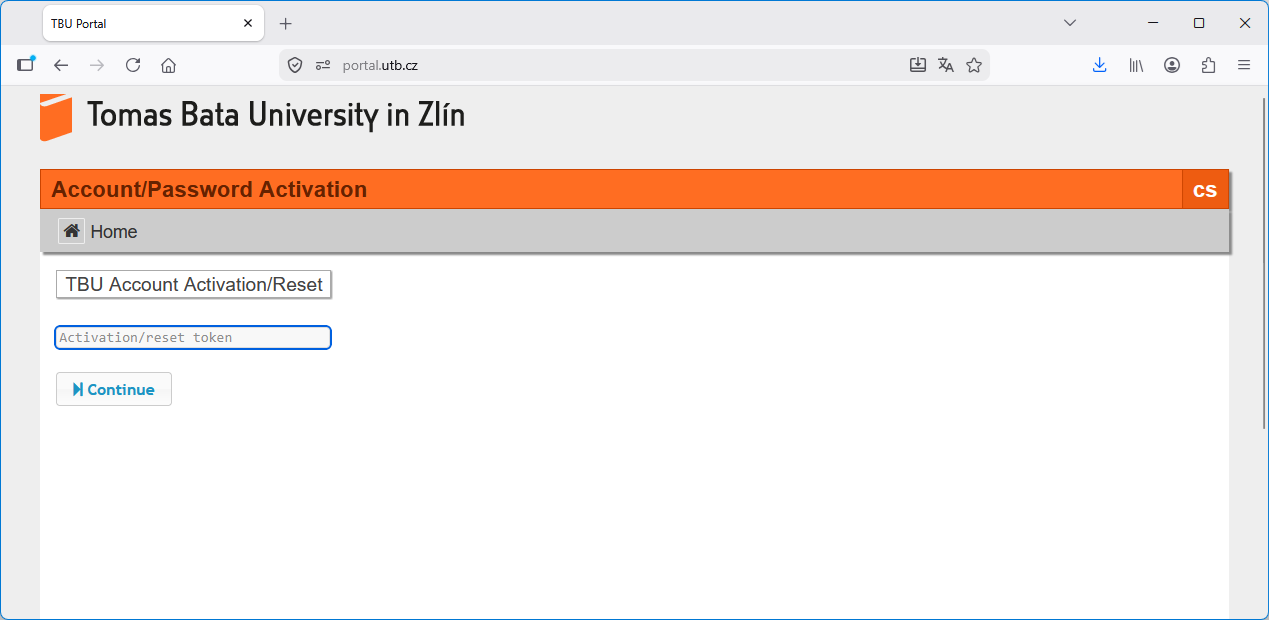
Enter the activation key from the PDF document into the Activation/Reset token field on the form, then click Continue.
Add the account to the authentication app on your mobile phone by scanning the QR code displayed. If you are using the desktop version of the authentication app, you will likely need to manually enter the settings for generating OTP codes when adding the account to the app. All necessary parameters will be displayed below the QR code. Then, to verify the correct settings, enter the verification code displayed in the app.
Set a new user password in accordance with the new rules. This password will be valid for logging in to all TBU systems, including your university e-mail account, with the exception of the eduroam Wi-Fi network. See the user account information after logging in to the portal.