
TBU Account Management Portal
The portal at portal.utb.cz is used to activate your TBU user account, manage your password, set up multi-factor authentication (MFA), and activate your account and set up your password for the eduroam Wi-Fi network.
Options available from the portal’s main page
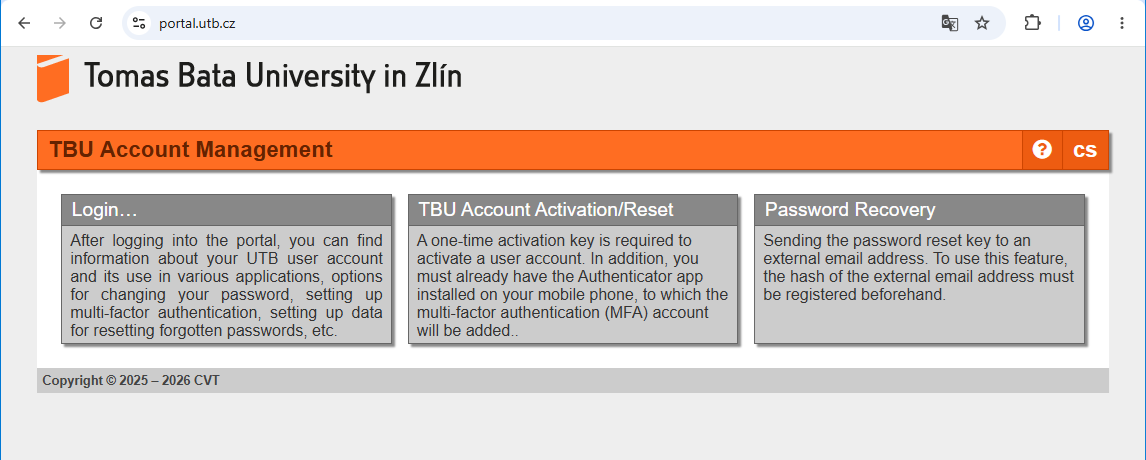
Login
Log in to the portal to access additional options and settings.
TBU Account Activation or Password Reset
Account Activation
Before activating your account, you must have an authentication app installed on your mobile phone or computer to generate one-time passwords (OTP codes) for multi-factor authentication.
- Enter the activation key you received in the Activation/reset token field.
- Add the account to your authentication app by scanning the QR code displayed or by manually entering the information shown below the QR code. If you have already added this account to your authentication app, you can skip this step.
- To verify that the settings are correct, enter the six-digit code displayed in the app into the OTP code field.
- Set a new password. You can check the validity of the entered password by clicking the eye icon (recommended). Confirm by clicking Set.
Reset password
- Enter the password reset key you received in the e-mail into the Activation/reset token field.
- Set a new password. You can check the validity of the entered password by clicking the eye icon (recommended). Confirm by clicking Set.
Password Recovery
If you have registered an external e-mail address, you can have a password reset link sent to that address.
- Enter your username in the Username field and click Continue.
- Enter the external email address for which you have registered a hash for this purpose, and click Send.
- The entered address will be verified using the registered hash. A message containing a time-limited password reset key will be sent to the successfully verified address. Then proceed to Account Activation and use the key you received.
Options available after logging in
TBU Account Informations
View information about your TBU network username, e-mail address, and eduroam Wi-Fi username, as well as how to use them.
Password Settings (Change)
- Enter your new password twice. You can verify that the password is correct by clicking the eye icon (recommended).
- In the OTP code field, enter the six-digit code displayed in your authentication app.
- Confirm by clicking Set.
The password will be updated across all UTB internal systems, the IS/STAG system, the university e-mail, and the Microsoft 365 cloud, with the exception of access to the eduroam Wi-Fi network. The password change for e-mail and the Microsoft 365 cloud will take effect within approximately three minutes.
View the key for MFA
If you need to add an account for generating one-time passwords (OTP codes) for multi-factor authentication on another device, you can view the corresponding QR code, including the parameters for manually setting up the account.
- Copy the six-digit code displayed in the authentication app into the OTP code field and click View.
- Add the account to the authentication app on another device by scanning the displayed QR code or manually entering the information shown below the QR code.
E-mail registration for password reset
In case you need to reset a forgotten password, we recommend registering an external e-mail address to which a password reset link can be sent if necessary. The e-mail address will be stored in the system as a hash (checksum). It will not be possible to retrieve the e-mail address you entered from the stored hash.
- Enter your e-mail address in the External e-mail field.
- In the OTP code field, enter the six-digit code displayed in the authentication app, then click Set.
- A verification code will be sent to the e-mail address you provided.
- Copy or paste this code into the Verification code field and click Verify.
- The hash of the external e-mail address will be registered.
You can change your registered e-mail address in the same way. Alternatively, you can unsubscribe the email registration for password recovery.
Account Activation for the eduroam Wi-Fi Network
This option links to an application for setting or changing your password for the eduroam Wi-Fi network. By setting a password, you activate your account. For security reasons, the Wi-Fi network password must be different from the password used to access UTB’s internal systems, e-mail, etc.