User account activation for new users
User account activation includes:
- setting a password for the user account
- adding the account to the authentication app for multi-factor authentication;
multi-factor authentication will be required when changing your password and for remote access to the TBU network via VPN
Account activation procedure:
- Before activating your user account, install an authentication app on your mobile phone to generate one-time verification codes (OTP). Recommended apps include Microsoft Authenticator or Google Authenticator, which are available for free on Google Play or the App Store. If you already use such an app, you can skip this step.
If you are unable to install the authentication app on your mobile phone, alternative desktop apps are available for desktop computers or laptops – such as Proton Authenticator or AuthWin.
More information about recommended authentication apps, including download links, is available on a separate page.
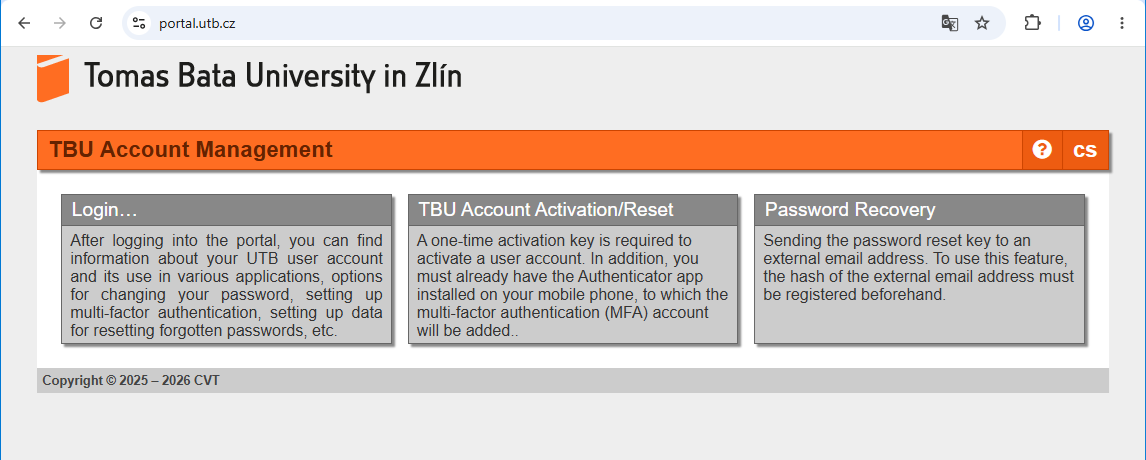
- Go to portal.utb.cz website and click the TBU Acount Activation/Reset title.
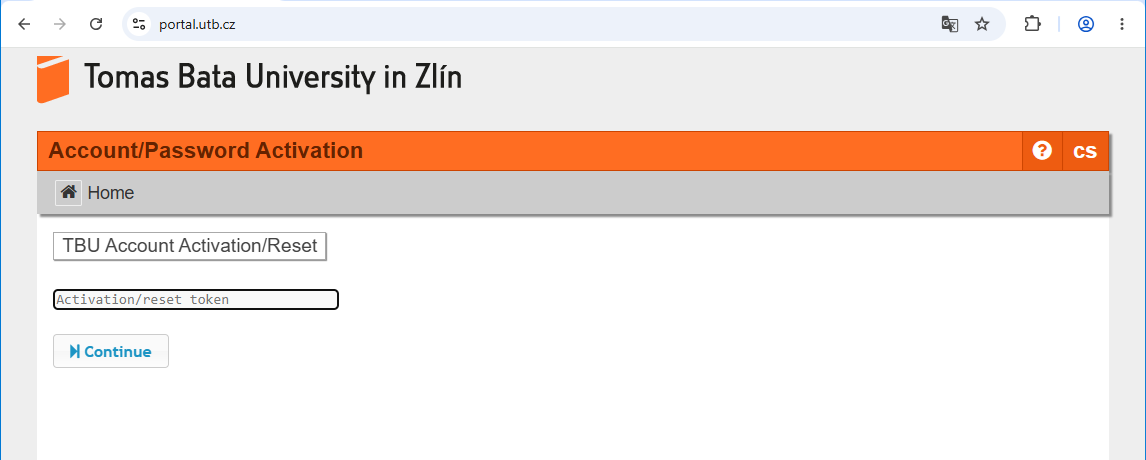
- In the Activation/Reset token field on the form, enter the activation key you received in the e-mail. We recommend that you do not type the key out by hand; instead, highlight, copy, and paste it. Then click Continue.
- Add the account to the authentication app on your mobile phone by scanning the QR code displayed. If you are using the desktop version of the authentication app, you will likely need to enter the parameters for generating OTP codes manually when adding the account to the app. All necessary parameters will be displayed below the QR code. To verify that the settings are correct, enter the six-digit code displayed in the app into the OTP code field. Click Continue.
- Set a new user password. This password will be valid for logging in to all UTB systems, including your university email account, except for the eduroam Wi-Fi network. The form will also display your TBU network username. Be sure to remember this username along with the password you set.
Additional features available after logging into the portal:
- View information about your TBU network username, e-mail address, and eduroam Wi-Fi username, as well as how to use them
- Change your password
- Register an external e-mail address to reset a forgotten password (recommended)
- Set a password and activate your account for the eduroam Wi-Fi network
More information about the user account management portal is available on a separate page.