VPN Remote Access
What is a VPN
A VPN (Virtual Private Network) is used to connect computers remotely to a secure internal network. The VPN is designed to provide secure access to information systems and services, databases, and applications that are otherwise only available from the TBU internal network. After connecting to the VPN, the computer obtains an IP address from the TBU internal network and appears to other servers on the university network as if it were part of the university network.
All TBU employees and students can use remote access via VPN to securely connect to the TBU computer network when they are off-campus (e.g., connecting from home, while on a business trip, etc.).
Always use a VPN connection only when you need to access the TBU network. Disconnect afterward; otherwise, your internet traffic will continue to be routed through the TBU network, and access to certain internet resources or resources on your local (home) network may not work properly.
How to Connect
To connect, you must have a VPN client installed. On some devices, the VPN client is built into the operating system. The recommended VPN client is Cisco Secure Client, which is available for most commonly used operating systems. The installation files are available for download below.
Starting June 16, 2026, multi-factor authentication (MFA) will be required to log in to the VPN. In addition to your password, you will always need to enter a six-digit one-time password (OTP) generated by the authentication app.
More information about multi-factor authentication is available on a separate webpage.
Basic Information
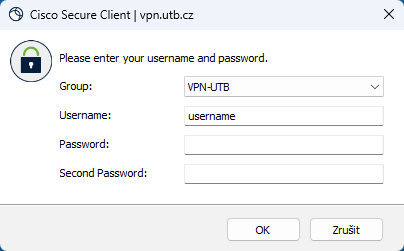
- VPN server address: vpn.utb.cz
- Username: TBU network username
- Password: same as for the TBU network or the IS/STAG system
- Second Password: six-digit verification code (OTP) displayed in the authentication app
Instructions for Connecting from Windows
Download the Cisco Secure Client for Wndows and install it on your computer. For ease of use, we recommend creating a shortcut on your desktop.
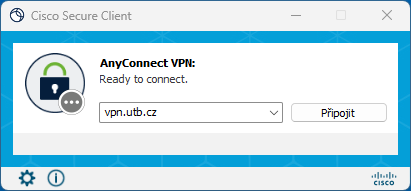
Launch the installed Cisco Secure Client, enter the VPN server name: vpn.utb.cz and click Connect.
Then enter your TBU username and password. For the Second Password, enter the six-digit verification code (OTP) displayed in your authentication app. Click OK.
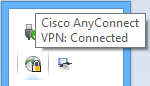
Once you’ve successfully connected, a padlock icon will appear in the notification area (at the bottom right of the screen).
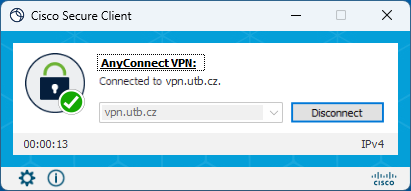
To disconnect, click this icon in the notification area; the VPN client window will reopen, and then click Disconnect.
If you need help configuring your VPN connection, please contact your faculty or department’s local IT administrator, the CVT Helpdesk (network@utb.cz), or the Computer Technology Center, Computer Networks Department, Room 219, Building U13.
VPN client installation files
- Cisco Secure Client 5.1.6 for Windows (zip)
- Cisco Secure Client 5.1.6 for Windows ARM64 (zip)
- Cisco Secure Client 5.1.6 for MacOS (zip)
- Cisco Secure Client 5.1.6 for Linux x64 (tar.gz)
- Cisco Secure Client 5.1.6 for Linux x64 DEB Package (tar.gz)
- Cisco Secure Client 5.1.6 for Linux x64 RPM Package (tar.gz)
More tutorials
- Configuring the VPN client on iPhone devices – Cisco Secure Client
- Configuring the VPN client on iPhone devices – OS-based client
- Configuring the VPN client on macOS devices – Cisco Secure Client
- Configuring the VPN client on Android devices – Cisco Secure Client
- Configuring the VPN client on Android devices – operating system client